
Locally Hosted AI Agent With Web Search Capacity / MCP Server.
Web Search MCP Server Setup Guide:
Summary:
This guide is specifically tailored for users running LM Studio on Windows 10/11, with a 7900XTX AMD GPU using ROCm. It details how to set up a locally hosted web search MCP server (by mrkrsl) for use with Qwen3, Gemma 3, or Llama 3.2 models — a niche but highly effective setup. With this guide, you gain real-time web search capabilities without relying on cloud APIs, enabling advanced tool use in your local AI. Protecting your data and keeping it local!
Overview: What This Guide Covers
- Set up for Windows 10/11 users
- Configuration for AMD 7900XTX GPU (with ROCm)
- Integration with LM Studio and locally hosted AI
- Using
web-search-mcp(GitHub project) for full web search - Specialized tools for content extraction, search, and concurrent processing
- Troubleshooting tips for Windows, ROCm, and local model compatibility
Why This Setup Works
- No API keys required: Uses direct browser-based connections (no token needed).
- No cloud dependency: Fully local, privacy-focused.
- High performance: Optimal for AMD 7900XTX with ROCm.
- Real-time data retrieval: Enables accurate answers to queries like "Who won the 2024 U.S. Presidential Election?"
- Tool-use support: Works well with Qwen3, Gemma 3, Llama 3.2 — ideal for local AI.
Step-by-Step: Setup for Windows + AMD 7900XTX
1. Download the web-search-mcp Project

2. Install Dependencies
Ensure you have Node.js 18+ and npm 8+ installed.
Download the Windows prebuild Node.JS MSI installer
This will install both node and npm. You can reboot now if you want to, if you have a terminal open, be sure to close and re open as admin. Or else npm , npx wont work.
2.A
Extract the zip file to a location on your system, I would reccomend the following:
Using winrar extract to the lmstudio root location, this will create the web-search-mcp folder. bob is a example user in this case
C:\Users\bob\.lmstudio\web-search-mcp
2.B
Now open a windows command prompt as admin -> you will want to navigate to the extracted web-search-mcp location -> isntall npm, npx playwright, and lastly build.
C:\WINDOWS\system32> cd C:\Users\bob\.lmstudio\web-search-mcp

C:\Users\bob\.lmstudio\web-search-mcp>

C:\Users\bob\.lmstudio\web-search-mcp> npm install

C:\Users\bob\.lmstudio\web-search-mcp> npx playwright install

C:\Users\bob\.lmstudio\web-search-mcp> npm run build
Note: This creates the
dist/folder with compiled JavaScript files.
You will need the location of the index.js file for the next step.
3. Option 1: Configure the mcp.json File
Open your mcp.json file (located at C:\Users\<YourUsername>\.lmstudio\mcp.json on Windows.
Add this configuration:
{
  "mcpServers": {
    "web-search": {
      "command": "node",
      "args": [
        "~EXAMPLE_PATH~C:\\Users\\bob\\.lmstudio\\web-search-mcp\\dist\\index.js"
      ]
    }
  }
}
Remove ~EXAMPLE_PATH~ & Replace C:\\Users\\... with your actual path.Option 2: Inside LM Studio
Use the button below to open LM studio or follow this guide ⬇️.
https://lmstudio.ai/docs/app/mcp

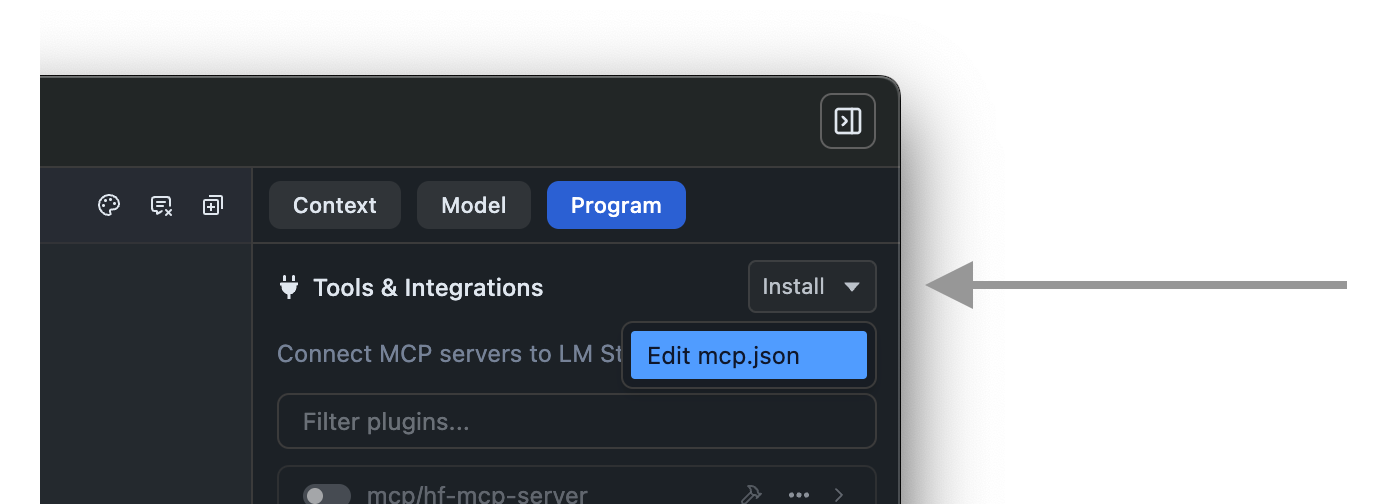
How to Use It in LM Studio
- Open LM Studio → Wrench icon→ Go to
Program > Edit mcp.json. - Add the MCP server via the in-app editor.
- Enable it in the integrations panel.
- Test with queries like:
- “Who won the 2024 U.S. Presidential Election?”
- “What are the implications of the 2025 House of Councillors election in Japan?”
LM Studio will prompt you to approve — then perform the search and return results.

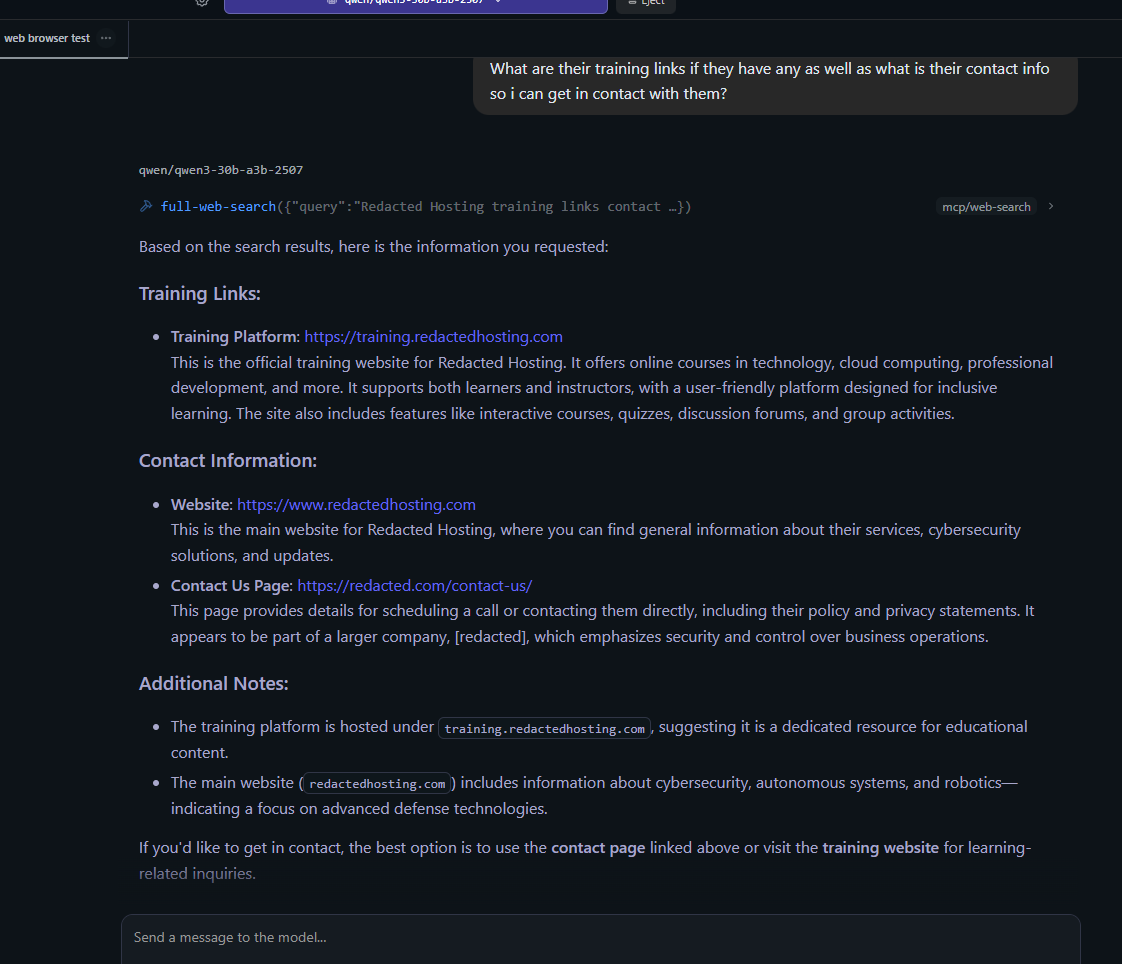
Tips for Best Results
- Use models with tool-use support: Look for models with “instruct” or “chat” variants (e.g., Qwen3, Gemma 3, Llama 3.2).
- Optimize performance: Set
MAX_BROWSERS=1to reduce memory usage. - Avoid network restrictions: Some networks block browser automation — try a different network or VPN.
- Use headless mode: Ensure
BROWSER_HEADLESS=truefor server environments.
Troubleshooting
- npm install fails? → Update Node.js to 18+ and npm to 8+.
- npm run build fails? → Ensure latest Node.js version is installed.
- Content length issues? → Set
MAX_CONTENT_LENGTH=10000inmcp.jsonenvironment variables.
Conclusion
This guide enables a powerful, local, privacy-focused web search setup — perfect for Windows users with AMD 7900XTX and ROCm. It’s ideal for developers, researchers, or AI enthusiasts who want to leverage real-time data without cloud dependency.
Ready to Try It?
- Download the project: GitHub – mrkrsl/web-search-mcp
- Follow the instructions in the README for the full setup guide.
Note: Always use trusted sources. Never install MCP servers from untrusted sources. Some MCPs can have deep access to your system.
Special Thanks to the Mrkrsl & Dsowsy Team
This guide is made possible by the mrkrsl & dsowsy team, who created a robust, open-source MCP server that works seamlessly with LM Studio and locally hosted models.

-- Redacted Hosting Team.